


The right size. The right crop.
Resize without distortion. Keep the whole image or choose what gets cropped. Check the result before exporting.

Try different sizes and crops
Choose a shape and preview the result. ProPixel warns you before enlarging a source that is too small.
Source · coffee.jpg · 600 × 400
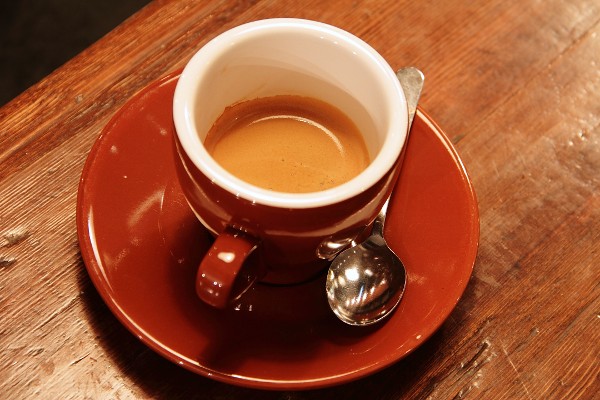
Output · 400 × 400 px
- CropX 100 · Y 0 · 400 × 400
- Scale1.00×
- StatusBlocked · Upscaling not permittedReady · not yet verified
Keep it all or choose the crop
Exact and bounded sizes
Set an exact width and height. Bounded sizes, such as the Web assets Hero at up to 2,400 px wide, keep the original shape.
Fit and fill
Fit shows the whole image, letterboxed onto the canvas. Fill crops to the shape around a focal point.
Manual crop
Drag, nudge with the arrow keys (Shift for 10 px) or type X, Y, width and height. The crop stays locked to the destination’s shape.
Orientation
Camera orientation is applied to the pixels first, so crops and sizes are always in the image as you see it.
Suggested crops. Your decision.
Where it is available, subject analysis on your Mac proposes a crop centred on the detected subject. It is shown as a dashed outline and used only if you choose Use Suggestion and apply the crop. If the current crop cuts the subject, ProPixel warns you and offers Fit instead.

Available on Apple silicon Macs running a macOS version on which it has been verified — currently macOS 27. On other versions it is turned off with an explanation, and manual crop and fit work as usual.
Suggestions follow the detected subject. They do not check text, logos, labels or fine product detail, and a suggested shape may not hold the whole subject.